Agent-Initiated Co-Browsing
Updated
Agent-initiated Co-Browsing enables agents to collaborate with customers in real time by viewing the customer's screen during an active interaction. Agents can send a Co-Browsing request directly from Care Console, allowing customers to securely share their screen and receive guided assistance.
Agent Sends Co-browsing Session Request
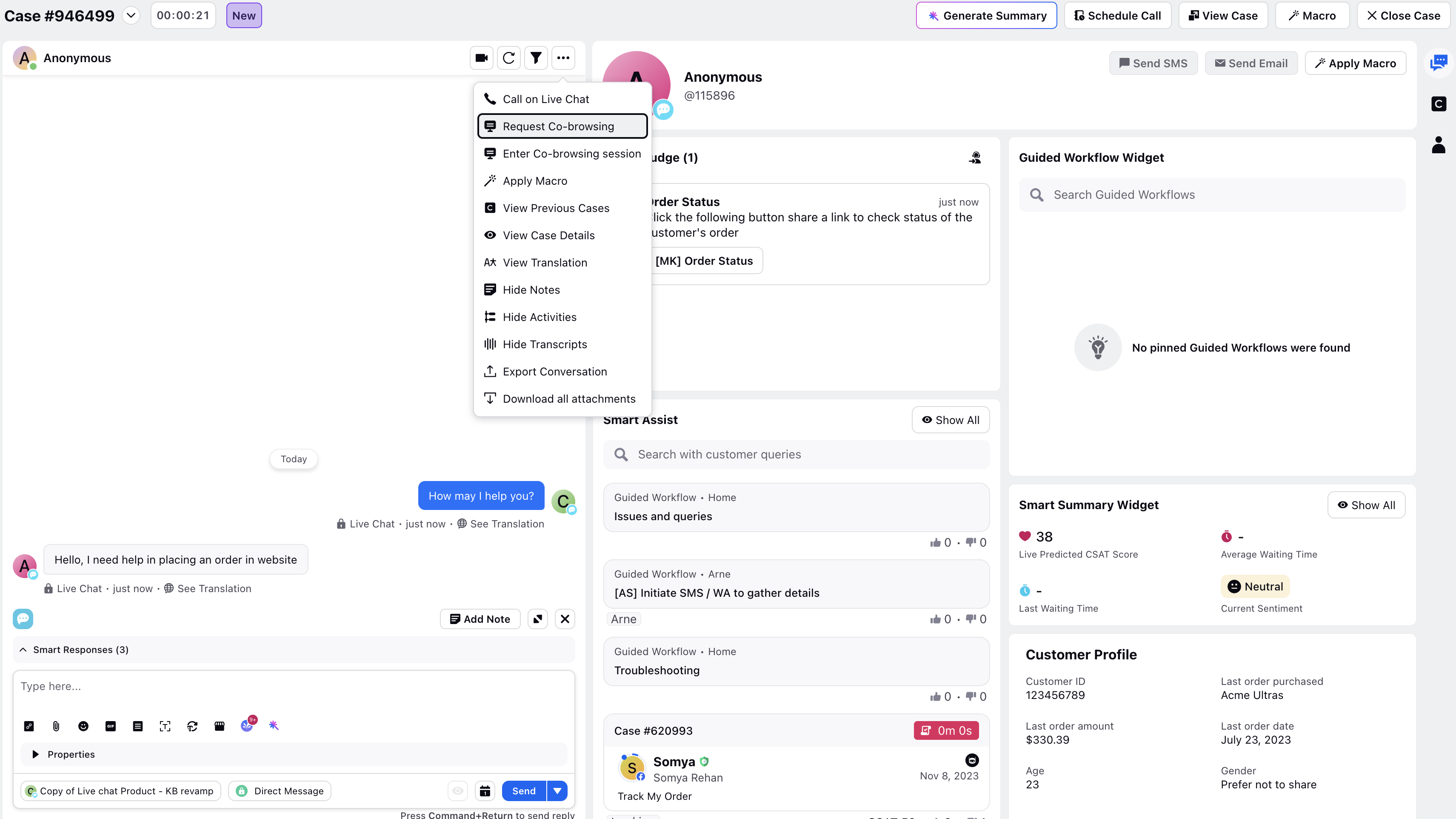
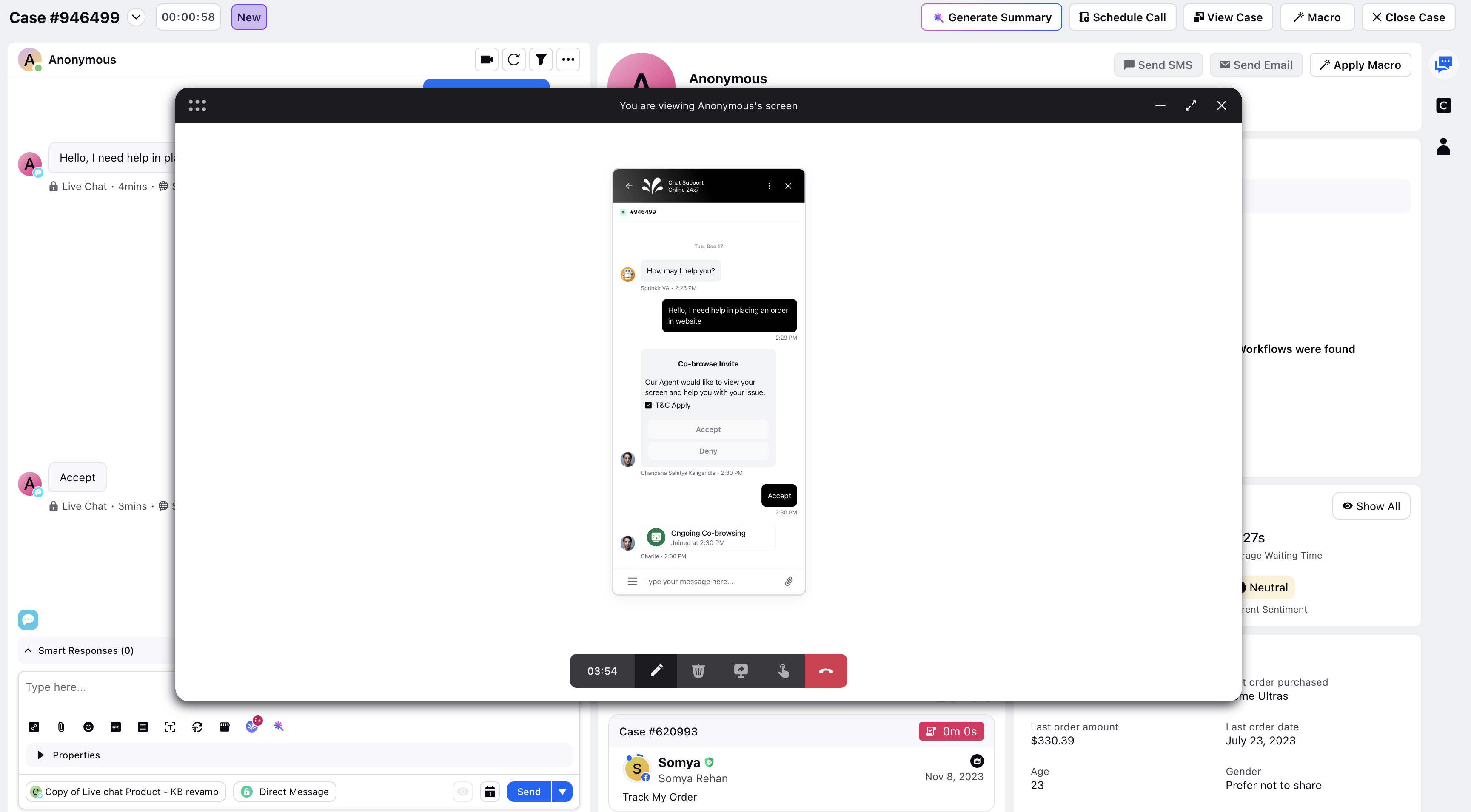
Agents initiate a co-browse request from Care Console using the More Options (three-dot) menu. A co-browse request is sent to the customer as an interactive asset, allowing the customer to approve or decline the screen-sharing request.
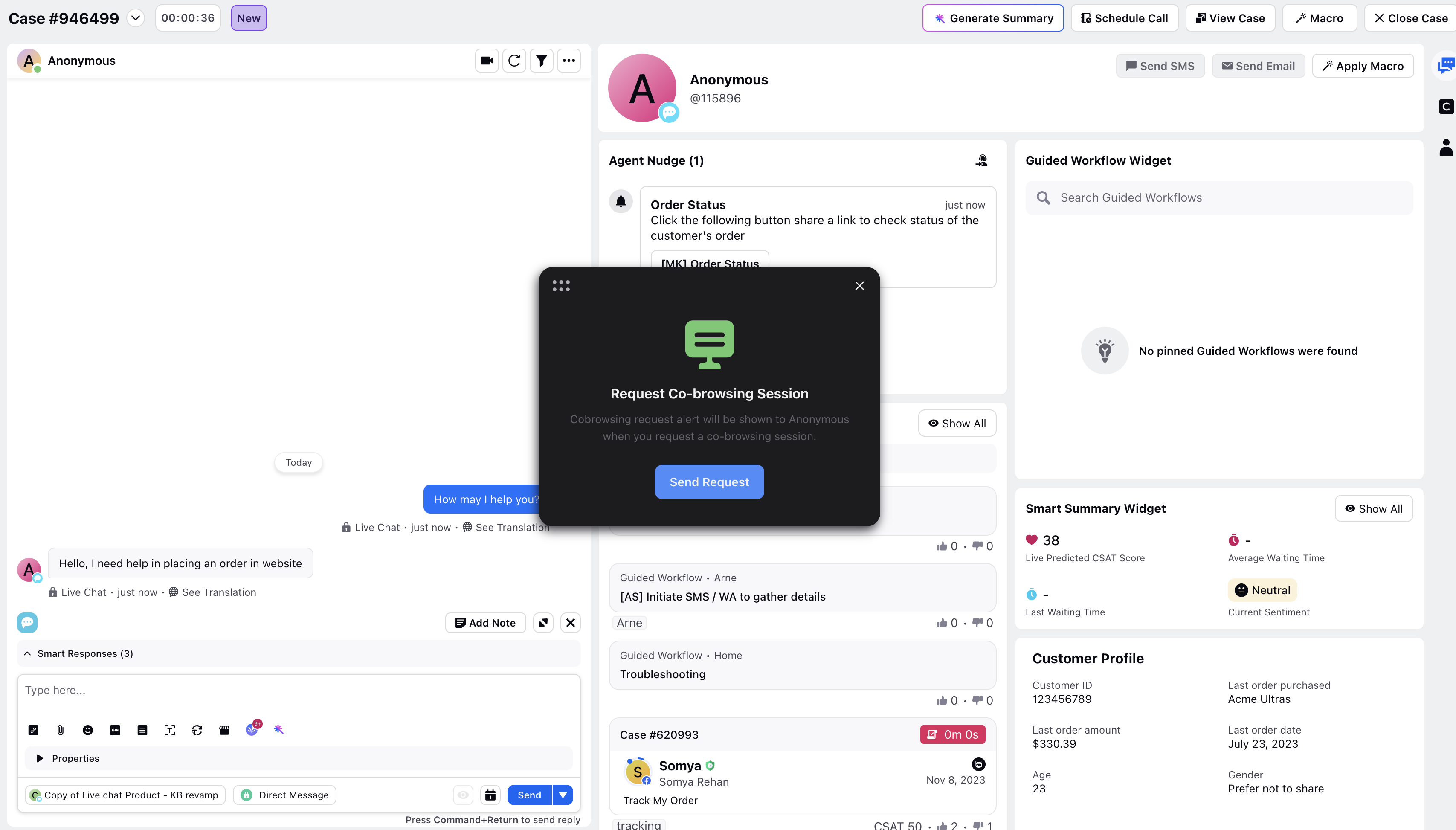
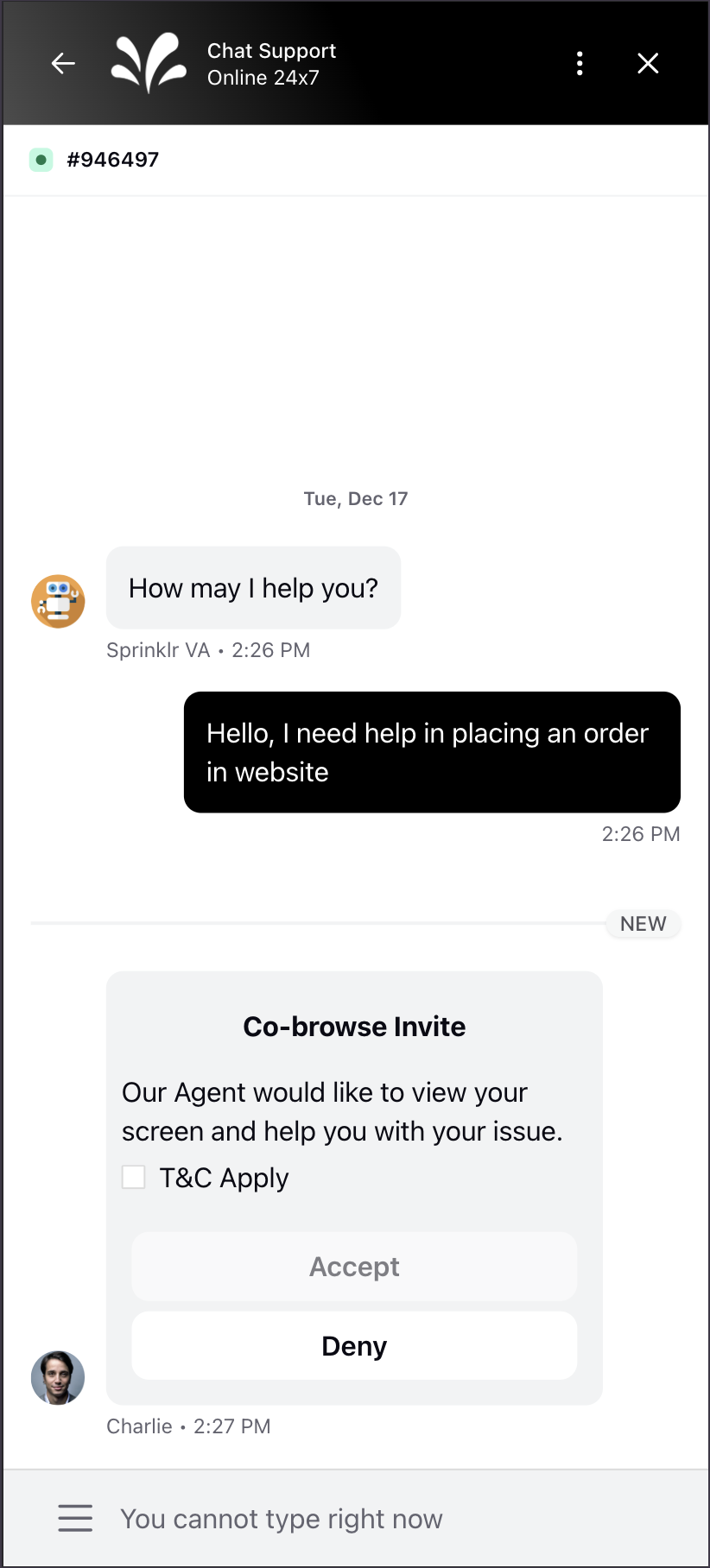
Customer Accepts the Request
Once the customer clicks Accept, the co-browse session begins. Customers can stop screen sharing at any time by clicking Stop Co-browsing. If the customer refreshes the page or experiences a temporary network interruption during the session, the co-browse session automatically reconnects when connectivity is restored.
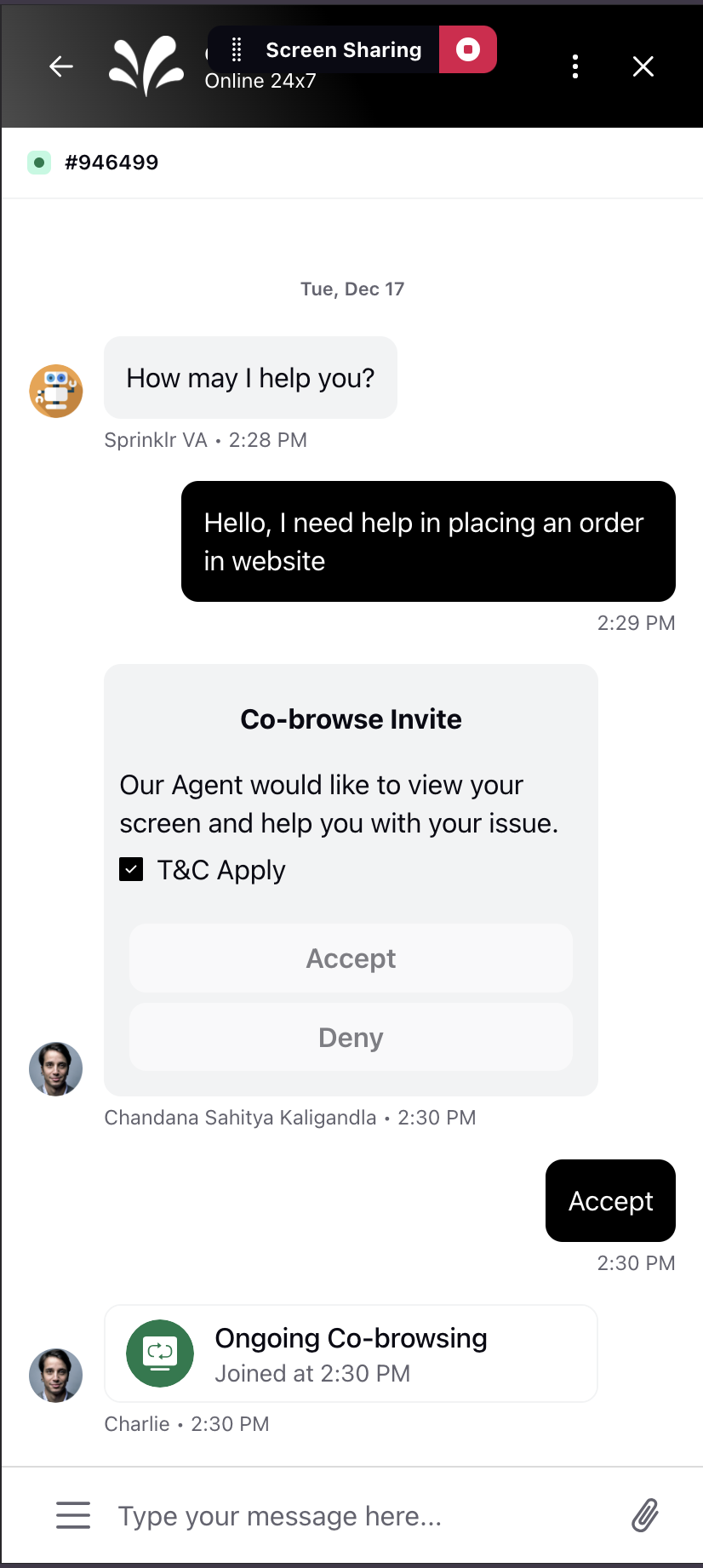
Agents have the option to minimize the co-browsing window, allowing them to view chats or the customer's details if needed.
View Co-browse Session Activity
The Conversation Pane in Care Console displays co-browse session events directly within the conversation timeline, allowing agents to track co-browse activity without leaving the case.
The activity timeline shows when a customer transitions from a supported channel, such as WhatsApp, to a co-browse session and when the interaction returns to the original channel. It also captures key co-browse lifecycle events and associated artifacts, providing a complete view of the session within the context of the customer conversation.
Agents can view:
The channel from which the co-browse session was initiated
Channel transition events between the originating channel and co-browse
Co-browse session lifecycle events
Co-browse session recordings attached to the case
Co-browse session end events
.png)