Manage All Email Distributions
Updated
The Distribution Record Manager offers a centralized interface to create, manage, and monitor email distributions. It allows you to easily track key metrics, make edits, and analyze performance data, all in one place.
Email distribution enables users to send customizable survey invitation emails to customers, with the flexibility to trigger them in real time, on a schedule, or based on external events. This article focuses on managing email distribution actions directly within the Distribution Record Manager.
Business Use Cases
Email Distribution Tracking: The Record Manager assists in efficiently monitoring the performance of various email survey distributions. With a centralized record manager, you can gain real-time access to essential metrics, including open rates, click-through rates, and survey completion rates. This consolidated perspective enables swift modifications, contributing to improved performance and better overall outcomes.
Data Analysis and Optimization: A record management system helps by providing access to key performance metrics, enabling comparison across multiple distributions and identifying trends that can be used to optimize future survey efforts.
Campaign Adjustment: With a record manager's editing capabilities, you can easily update distributions, adjust email content, and quickly clone and resend invitations to targeted groups, minimizing manual effort and improving efficiency.
Crisis Management and Immediate Response: A record manager with the ability to pause all active distributions at once allows teams to quickly halt further emails, preventing the error from spreading. This functionality enables swift crisis management with minimal disruption to ongoing campaigns.
A centralized record manager streamlines email survey distribution by offering key features for efficiency and control. Centralized Control lets teams manage all campaigns from one platform, while Real-Time Monitoring and Detailed Reporting provide live insights into performance and engagement. Improved Campaign Strategy is supported through analytics that help optimize content and targeting. In urgent situations, Crisis Management features allow all distributions to be paused instantly, and Granular Control enables pausing individual campaigns as needed. Performance Monitoring ensures ongoing visibility into survey results, helping teams make informed adjustments for better outcomes.
Prerequisites
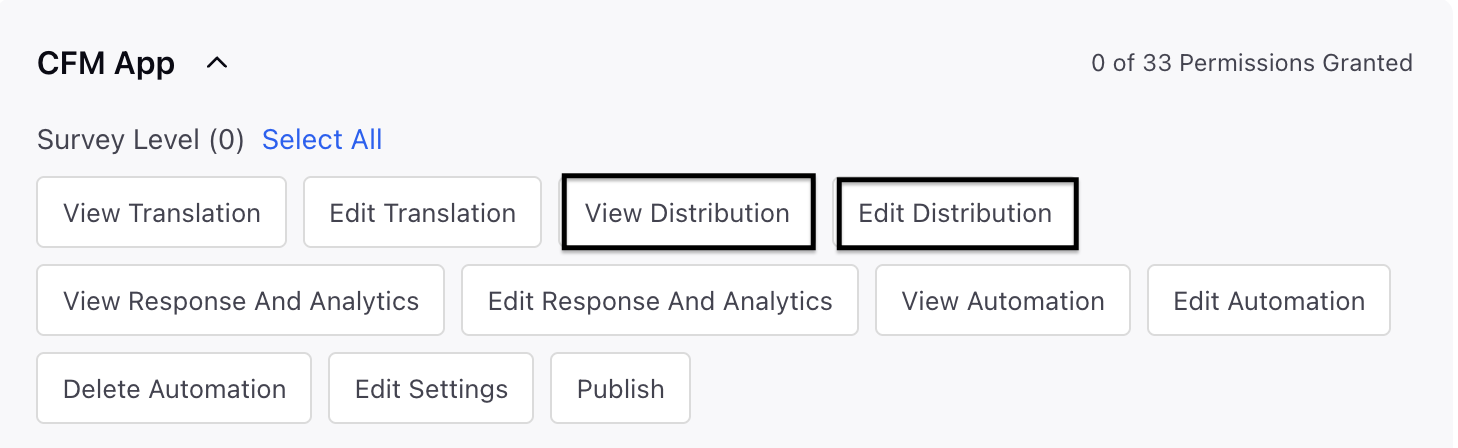
In order to access the Email Distribution, you must have the following View and Edit Distribution permissions at the Survey Level.
How Record Manager Works
Upon accessing the Distribution Record Manager, you will find a consolidated list of all distributions across various channels, including email, along with their current status and pertinent metrics.

Record Manager Columns and Metrics
Refer to these article for details on the columns and metrics available for email distributions.
You can also perform the following actions on the record manager.
Distribution Level Quick Actions
Using the Vertical Ellipses (⋮) menu for each unique Email Distribution within the survey, you can perform the following quick actions.
Click the Vertical Ellipsis (⋮) and select Action.

Quick Action | Description |
Edit | Your access to edit the distribution varies based on its status:
|
Clone | The clone feature allows you to create an identical copy of an existing Email Distribution. |
View | View Email Distribution form details. |
Pause | The pause feature allows you to stop the distribution immediately if issues arise, halting any further emails from being sent. Response collection will be temporarily halted, and recipients attempting to access the survey will be redirected to a "Paused" page until the distribution is resumed. |
Distribution Report | The Distribution Report provides live status updates on each email sent in the survey invite distribution. Each email is tracked as a unique row item with its data (sent, failed, quarantined), and includes the response status (received, started, unopened). For successful submissions, the Response ID is provided.
Distribution Report:
|
Delete | You can also remove the distribution. |

 Key points to note:
This is an Out-of-the-Box (OOTB) report, and it does not require any testing. You can confirm that the survey invitations and related data are being processed and shown accurately.
Options for customizing the reporting of email distribution metrics are not accessible. Only the standard out-of-the-box metrics and the record manager can be reviewed and analyzed.
Understanding the Distribution Reports
Invite Status | What it means |
Failed | Message failed to send (Publishing Failed, Rate Limited, Profile Invalid, Account Invalid, or provider-level drops like Bounced Address, Spam Content, Invalid Address, Quota Exceeded) |
Quarantined | Invite blocked due to configured quarantine rules |
Suppressed | Invite blocked — user previously opted out (global opt-out or list-level opt-out when "Use Unsubscription List" toggle is ON) |
Bounced | Active rejection by recipient's mail server (Invalid Address, Mailbox Unavailable, Technical, Content, Reputation, Frequency/Volume, Unclassified) |
Invite Sent | Invite sent successfully; no user interaction yet |
Invite Delivered | Email confirmed delivered to recipient's mail server by provider (SendGrid) |
Invite Opened | Email opened by the recipient |
Unsubscribed | User unsubscribed via the survey message (global or list-level) |
Spam Reported | Recipient marked the email as spam in their email provider |
The Distribution Report offers a real-time overview of every survey invitation dispatched via Email (or SMS, WhatsApp, or created through Personalized Links where applicable). Each invitation is listed as a separate row, enabling you to monitor delivery results, gauge customer engagement, and access related response information.
The report illustrates the status of each invite attempt, encompassing successful deliveries, failures, quarantines, and suppressions, along with the relevant response status such as survey opened, in progress, or completed. For all surveys that have been completed, the Response ID can be accessed directly from the report.
Column | Definition | ||||||||||||||||||||
Name | The profile, transaction, or recipient name associated with the invite, where available. | ||||||||||||||||||||
Contact | The exact delivery endpoint used for the invite.
For profile-based sends, double-click the Contact value to open the Profile third pane, if you have the required platform access. | ||||||||||||||||||||
Source Type | Identifies the entity type that triggered or generated the invite. Supported values are Profile, Case, and Transaction. This column is visible by default for new distribution report views and can be managed from the Column Manager. You can also filter the report by Source Type. | ||||||||||||||||||||
Universal Profile ID | The Universal Profile ID associated with the invite for profile-based distributions. This is populated for invites triggered through Profile Lists, Samples, individual profile selection, and CFM Workflow API-based sends. Double-click the value to open the Profile third pane, if you have the required platform access. This column may be hidden by default and can be enabled from the Column Manager. | ||||||||||||||||||||
Transaction ID | The Transaction ID associated with the invite for transaction-based distributions. This is populated for adhoc transaction-based sends, Transaction workflows, Salesforce workflows, Zendesk workflows, and Personalized Links generated using transactions. Double-click the value to view Transaction details. | ||||||||||||||||||||
Case Number | The Case Number associated with the invite for case-based distributions, such as Case Update Rule-triggered sends and case-based Personalized Links. The Case Number is retained even when the invite fails or when no valid contact channel/profile can be resolved, so users can trace the attempted distribution back to the originating case. Double-click the value to open the Case record in the third pane, if you have the required platform access. | ||||||||||||||||||||
Invite Status | The current delivery or eligibility status of the invite. Supported statuses include Invite Sent, Failed, Invite Delivered, Bounced, Quarantined, Suppressed, Unsubscribed, and Spam Reported. Suppressed means the invite was not sent because the recipient was not eligible to receive survey communications. This can happen due to global opt-out or, when Use Unsubscription List is enabled in Schedule Settings, because the recipient is opted out of the selected unsubscription list.
| ||||||||||||||||||||
Invite Status Details | Provides the detailed reason behind the invite status, especially for failed, suppressed, and unsubscribed invites.
| ||||||||||||||||||||
Response Status | The current survey response state for the invite. Supported response statuses include Not Started, Survey Opened, In Progress, Partially Completed, and Completed. | ||||||||||||||||||||
Invite Processed Time | The exact timestamp when the invite was processed by the system, including invites that failed. Distribution reports are sorted by Invite Processed Time in descending order by default. This column is available in exports. | ||||||||||||||||||||
Invite Sent Time | The timestamp when the invite was sent from Sprinklr. This is especially useful for triggered or workflow-driven invitations that are sent on an ongoing basis. | ||||||||||||||||||||
Reminder Count | The total number of reminders sent for the invite. If no reminders are sent, the value is shown as “-”. This column is available for Email, WhatsApp, and SMS distributions, hidden by default, dynamically updated as reminders are triggered, and supported in exports. | ||||||||||||||||||||
Last Reminder Sent Time | The timestamp of the most recent reminder sent for the invite. If no reminder has been sent, the value is shown as “-”. This column is available for Email, WhatsApp, and SMS distributions, hidden by default, dynamically updated as reminders are triggered, and supported in exports. | ||||||||||||||||||||
Survey Response Time | The timestamp when the survey was responded to or partially completed. | ||||||||||||||||||||
Survey Start Time | The timestamp when the respondent answered at least one question. | ||||||||||||||||||||
Survey Filled Language | The language of the survey at the time of submission. Respondents can change this from the top-right of the survey form. | ||||||||||||||||||||
Response ID | If the survey was responded to, this is the ID of that response. You can copy this ID and search for it in the Responses tab to view the response and related metadata. |

Best Practices
Establish an Operating Rhythm: Consistently assess both ongoing and finished email survey distributions to obtain a thorough insight into performance patterns and enhance upcoming campaigns.
Track Key Engagement Metrics: Concentrate on response rates, unsubscription rates, and other essential metrics to pinpoint areas for improvement and boost participant engagement in future distributions.